

Wine Club FAQs

How to manage your Wine Club?
You can easily update your address, payment method, and product selection either by using the links provided in the email/newsletter or by going directly to the website.
By using the links from the Email/Newsletter
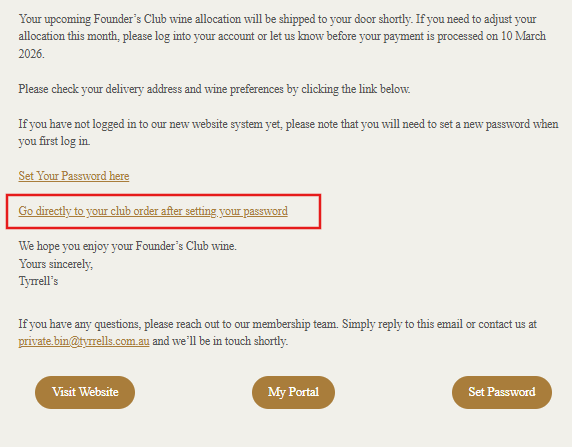
Please note that there are two links available:
A. One link that will take you directly to your Wine Club order
B. The other link will take you to your portal
A. Link to take you to your Wine Club Order
STEP 1 - Click 'Go directly to your club order after setting your password
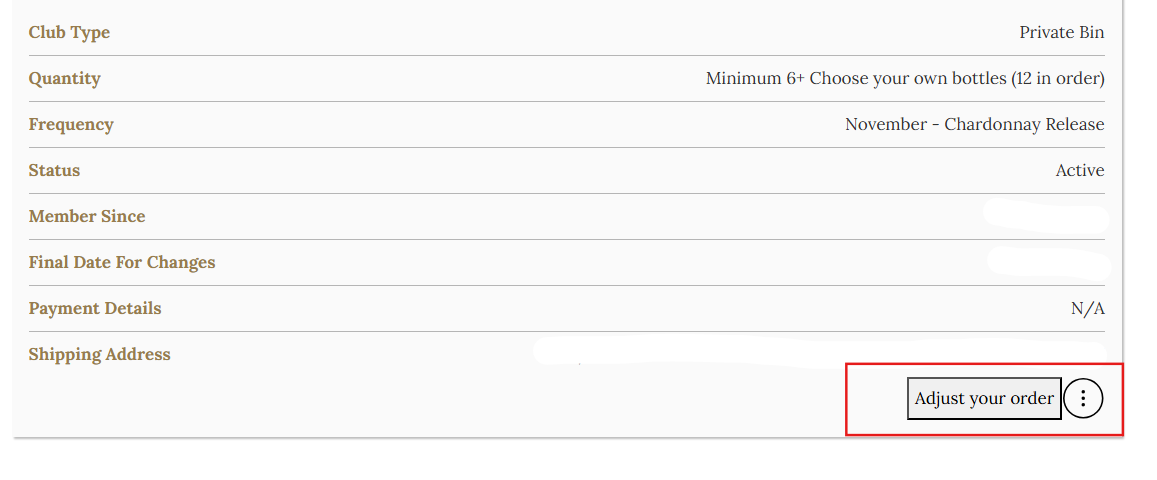
STEP 2 - Click on “View” to see more details of your Wine Club order.
STEP 3a - You can click “Adjust Order” to modify your order (e.g., change, add, or remove wine products).
STEP 3b - To manage other settings, click on the ellipsis (three vertical dots) to edit your club details. For skipping, pausing, or cancelling your order, please contact our friendly admin staff for assistance.
STEP 4 - After clicking “Edit Club Details,” you will be taken to a page with different sections where you can update:
a) Address
b) Payment Method
c) Adjust your products or switch clubs.
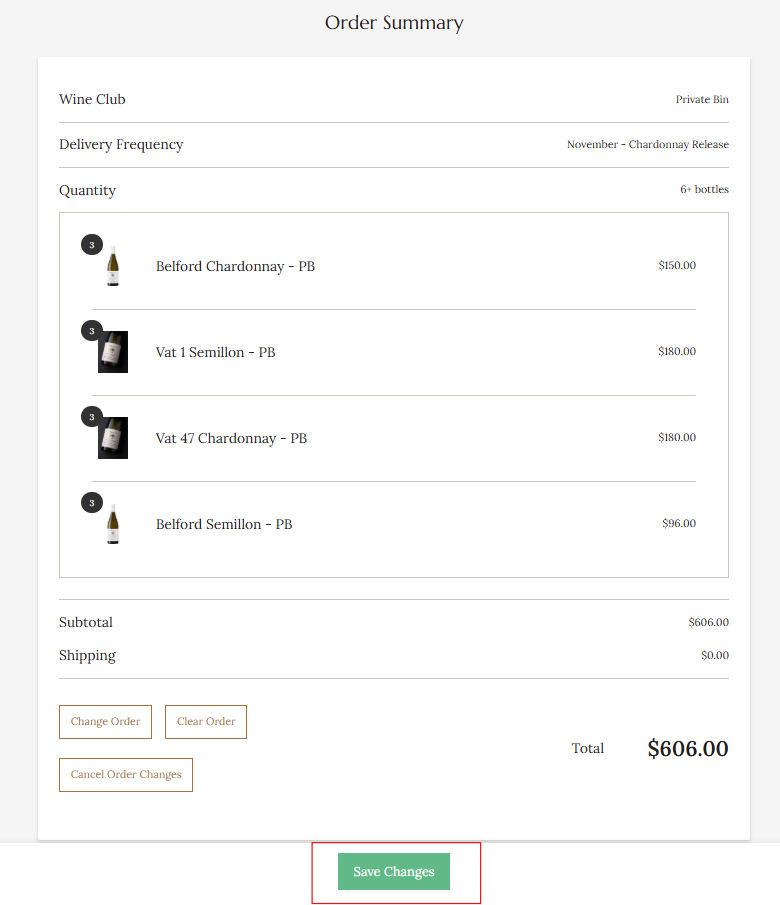
STEP 5 - Scroll to the bottom and SAVE on the green button.
Update each of the sections individually and then scroll to the bottom Click 'Save Changes' on the Green button. If you can't see a green button, this means there will be a section that you've not completed all the questions. Scroll back up to find the missing data and complete it prior to saving.
Note: Please note that the page you see may vary depending on your active orders or Wine Club membership. It may not look exactly the same as the sample screenshots provided.
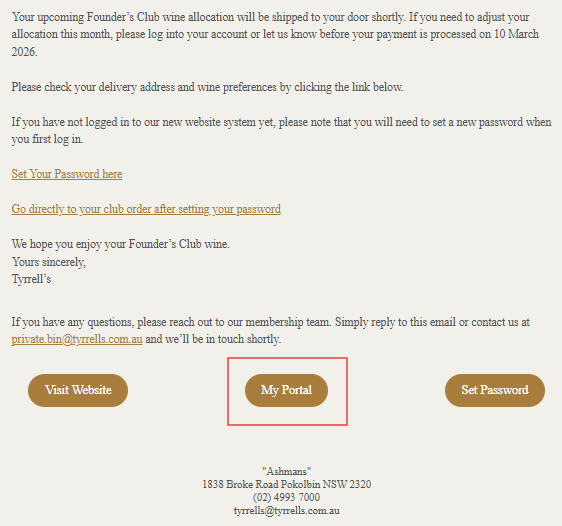
B. Link to take you to your portal
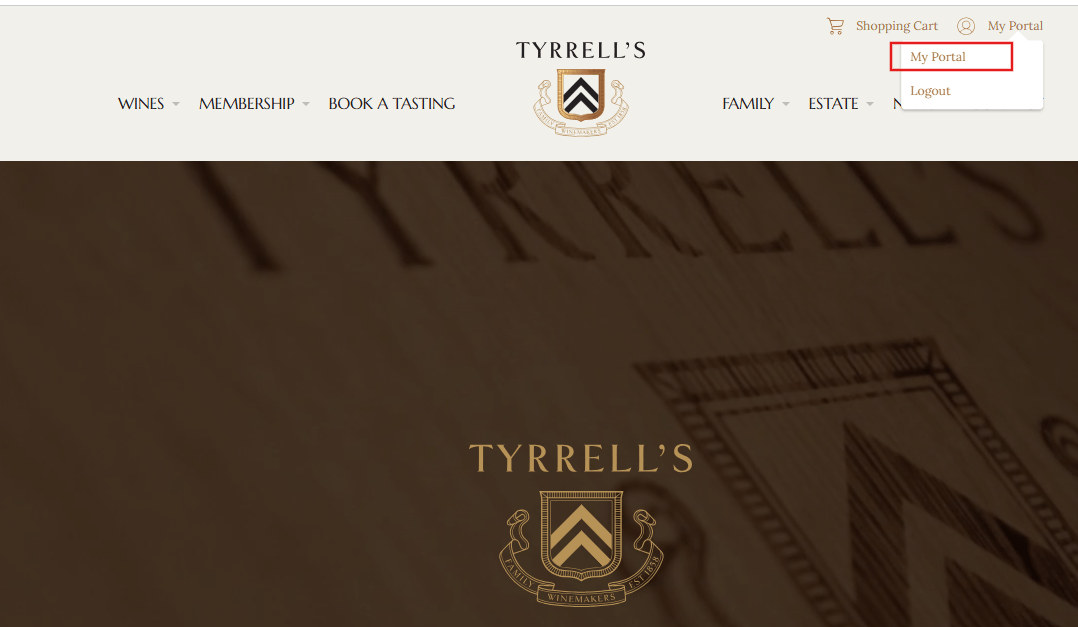
STEP 1 - Click 'My Portal'
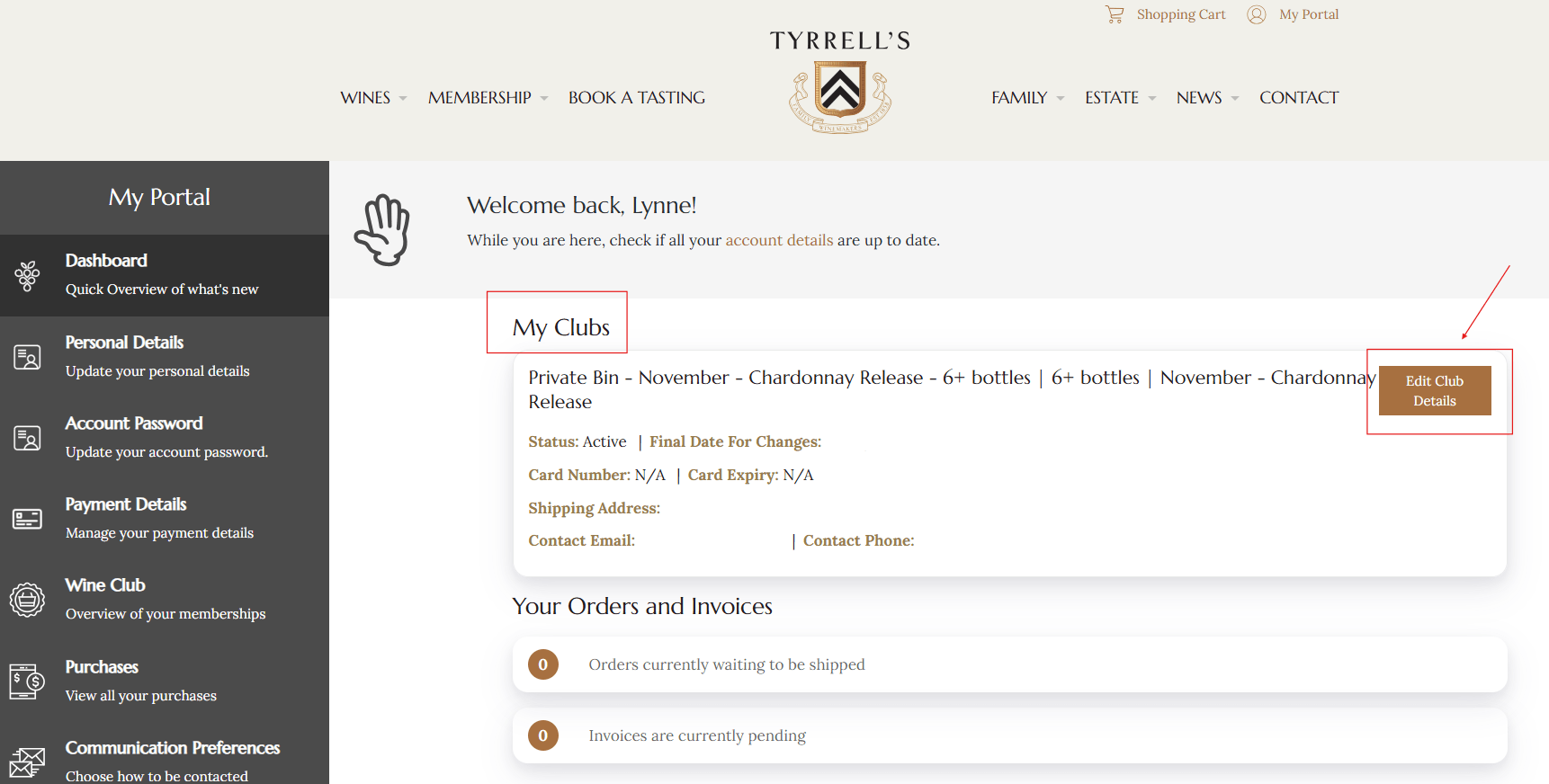
STEP 2 - On the main Dashboard, you will see 'My Clubs'
STEP 3 - Click 'Edit Club Details'.
STEP 4 - There are different sections on the club update page:
a) Address
b) Payment Method
c) Adjust your products or switch clubs.
STEP 5 - Scroll to the bottom and SAVE on the green button.
Update each of the sections individually and then scroll to the bottom Click 'Save Changes' on the Green button. If you can't see a green button, this means there will be a section that you've not completed all the questions. Scroll back up to find the missing data and complete it prior to saving.
Note: Please note that the page you see may vary depending on your active orders or Wine Club membership. It may not look exactly the same as the sample screenshots provided.
By going directly to the website
l Step 1 - Click 'My Portal'.
STEP 2 - On the main Dashboard, you will see 'My Clubs'
STEP 3 - Click 'Edit Club Details'.
STEP 4 - There are different sections on the club update page:
a) Address
b) Payment Method
c) Adjust your products or switch clubs.
STEP 5 - Scroll to the bottom and SAVE on the green button.
Update each of the sections individually and then scroll to the bottom Click 'Save Changes' on the Green button. If you can't see a green button, this means there will be a section that you've not completed all the questions. Scroll back up to find the missing data and complete it prior to saving.
Note: Please note that the page you see may vary depending on your active orders or Wine Club membership. It may not look exactly the same as the sample screenshots provided.